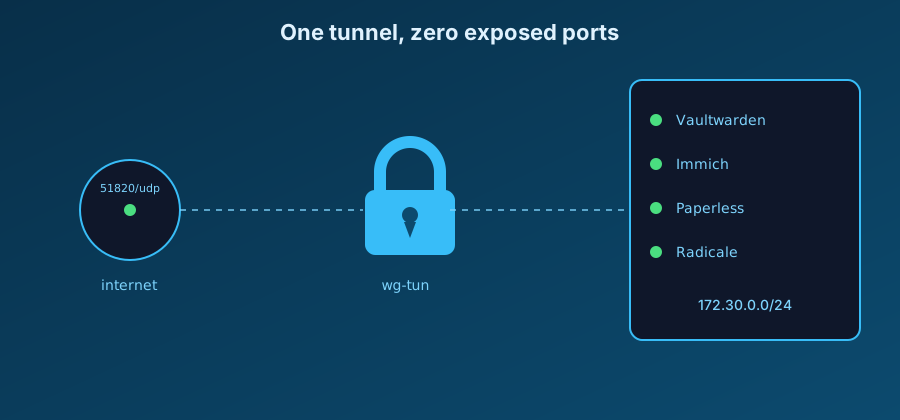
Most homelab guides tell you to put a reverse proxy in front of your services and call it secure. I went further: WireGuard is the only port exposed to the internet, and every service — including the Caddy reverse proxy itself — lives on a private Docker network that's unreachable without a valid VPN key. This post walks through the network design, how Caddy still gets valid HTTPS certs without ever opening port 443, and why this beats the usual "proxy + firewall rules" approach.
The problem with exposing self-hosted services
Running Vaultwarden, Immich and others services at home is great until you think about what it means to expose your password manager or your personal photo library directly to the internet. Every open port is an attack surface: unpatched vulnerabilities, brute-force attempts or even zero-days in the app itself. The usual answer is "put it behing a reverse proxy with TLS", but that still means something is listening on 80/443 for anyone to probe.
I took a different approach: nothing web-facing is exposed at all. The only port open to the internet is a single Wireguard UDP port. Every service lives on a private Docker network that's only reachable once you're inside the VPM tunnel.
The network: one tunnel, one bridge
Everything rely on a single externally-defined Docker bridge network. Each
service get a fixed address on it without a ports: section, they're only
addressable from other containers that use the wireguard network.
First off, create the network:
docker network create --subnet 172.30.0.0/24 wg-tun
Then the wireguard service:
services:
  wireguard:
    image: lscr.io/linuxserver/wireguard:latest
    cap_add:
      - NET_ADMIN
    environment:
      - SERVERPORT=51820
      - PEERS=phone,laptop,tablet,desktop
      - INTERNAL_SUBNET=10.8.0.0
      - ALLOWEDIPS=10.8.0.0/24,172.30.0.0/24
    networks:
      wg-tun:
        ipv4_address: 172.30.0.2
    ports:
      - '51820:51820/udp'

networks:
  wg-tun:
    external: true
The ALLOWEDIPS environment variable is where the magic happens: every peer
that connects to this wireguard server gets routed into the VPN's own subnet
(10.8.0.0/24) and into the Docker bridge subnet (172.30.0.0/24). Once
connected, every service is accessible by its internal IP just like you were in
the Docker host itself. Without a valid Wireguard keypair you can't reach that
network at all; it simply isn't routable from outside.
Connect to the tunnel from a peer
Start by installing wireguard to your device, then you can just download the
peer_device file in wirguard/config, or scan the QR code provided by
docker exec -it wireguard /app/show-peer phone.
Bind a service to the tunnel
As an example i'll show you how to bind a service to the Wireguard tunnel, in this case openspeedtest
services:
  openspeedtest:
    image: openspeedtest/latest
    networks:
      wg-tun:
        ipv4_address: 172.30.0.110

networks:
  wg-tun:
    external: true
The ipv4_address: 172.30.0.110 assign the IP that you'll use to access your
service in the Wireguard tunnel. Don't forget to import the network in your
compose file and to assign it to the service.
Now connect one of your device using the wireguard app using the
config/peer_device file that was created, or with the QRCode with the command
docker exec -it wireguard /app/show-peer phone.
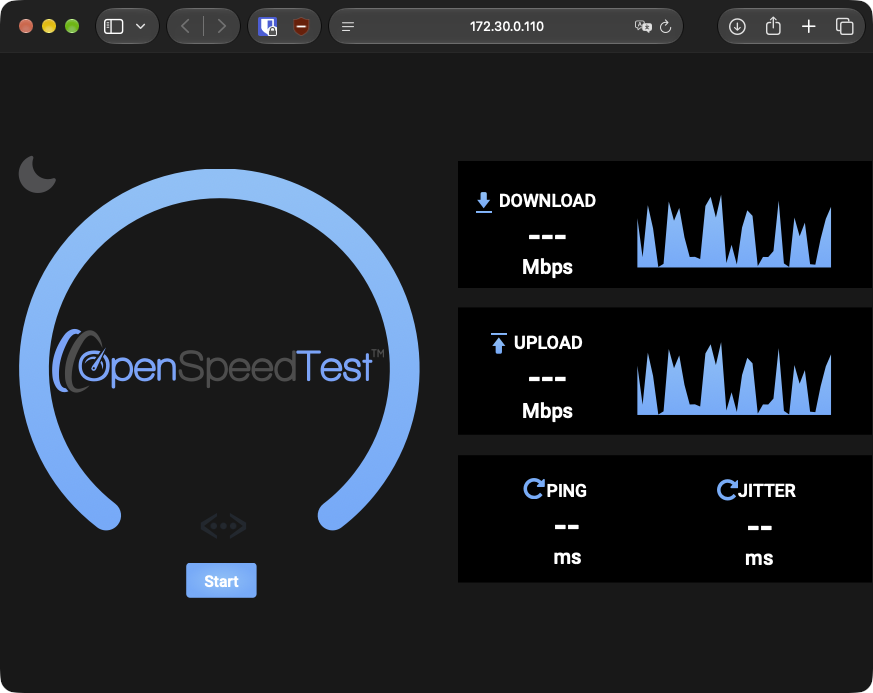
Once connected, if everything went fine you should be able to open
http://172.30.0.110:3000 in your browser.
Caddy: TLS without ever opening port 443
You'll need a domain with a TLS certificate to expose your services that require HTTPS. If you don't have one Duck DNS is a free subdomain provider.
Let's start by creating the structure:
mkdir -p caddy/{config,data} && touch caddy/{Caddyfile,docker-compose.yml,Dockerfile, .env}
caddy
├── Caddyfile
├── config\
├── data\
├── docker-compose.yml
├── Dockerfile
└── .env
# My domain is hosted by OVH and i use acme dns challenge
# to generate the certificates
{
  email me@example.com
  acme_dns ovh {
    endpoint {env.OVH_ENDPOINT}
    application_key {env.OVH_APPLICATION_KEY}
    application_secret {env.OVH_APPLICATION_SECRET}
    consumer_key {env.OVH_CONSUMER_KEY}
  }
}
# If we use our example container, for openspeedtest it would be:
speedtest.domain.com  { 172.30.0.110:3001 } # 3001 is the HTTPS port
service2.domain.com { reverse_proxy IP:PORT }

# With duckdns
subdomain.duckdns.org {
  reverse_proxy IP:PORT
}