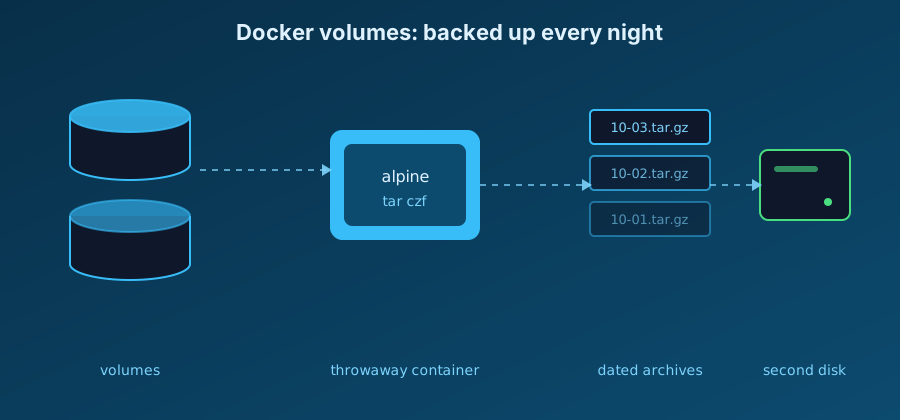
Containers are disposable, but the data in their volumes is not. A homelab that runs a few services on Docker Compose needs one boring thing before anything else: a backup you have actually restored at least once.
This guide backs up named volumes with a throwaway container, automates it with a small script, and ends with the restore test.
Find what to back up
Compose prefixes volume names with the project name, so list them first:
docker volume ls
A project called myapp with a data volume shows up as myapp_data. Those
names are what the commands below use.
Back up one volume
Mount the volume read-only in a temporary Alpine container, mount a folder from the host next to it, and archive the contents:
docker run --rm \
  -v myapp_data:/data:ro \
  -v "$PWD":/backup \
  alpine tar czf "/backup/myapp_data-$(date +%F).tar.gz" -C /data .
The :ro flag guarantees the backup cannot modify the data, and --rm removes
the container as soon as the archive is written. The result is a dated .tar.gz
file in the current directory.
Databases need a dump
Copying the files of a running database can produce a backup that does not
start. Ask the database to export itself instead. With a PostgreSQL service
called db in your Compose file:
docker compose exec -T db pg_dump -U postgres appdb | gzip > "appdb-$(date +%F).sql.gz"
The -T flag disables the pseudo-terminal so the output pipes cleanly. Other
databases have equivalents, such as mysqldump for MariaDB and MySQL.
For everything that is not a database (configuration, uploads, media metadata),
the volume archive above is enough. If a service writes constantly and has no
dump command, stop it for the few seconds the backup takes with
docker compose stop.
Automate it
Put the loop in a script, for example /usr/local/bin/backup-volumes.sh:
#!/usr/bin/env bash
set -euo pipefail

BACKUP_DIR=/srv/backups/docker
VOLUMES=(myapp_data myapp_config)
STAMP=$(date +%F)

mkdir -p "$BACKUP_DIR"

for volume in "${VOLUMES[@]}"; do
  docker run --rm \
    -v "$volume":/data:ro \
    -v "$BACKUP_DIR":/backup \
    alpine tar czf "/backup/${volume}-${STAMP}.tar.gz" -C /data .
done

# Keep seven days of archives.
find "$BACKUP_DIR" -name '*.tar.gz' -mtime +7 -delete
Make it executable with chmod +x /usr/local/bin/backup-volumes.sh, then
schedule it with crontab -e:
0 3 * * * /usr/local/bin/backup-volumes.sh >> /var/log/backup-volumes.log 2>&1
It now runs every night at 03:00, and the log tells you when something fails.
Restore, and test it
A restore is the same trick in reverse. Create an empty volume and extract the archive into it:
docker volume create myapp_data_restored

docker run --rm \
  -v myapp_data_restored:/data \
  -v /srv/backups/docker:/backup:ro \
  alpine tar xzf /backup/myapp_data-2026-10-03.tar.gz -C /data
Restore into a new volume first and point a test copy of the service at it. If it starts and the data is there, the backup is good. Do this once now and again after any change to the setup, because an untested backup is only a hope.
Keep a copy elsewhere
Backups on the same disk as the data protect you from mistakes, not from a dead
drive. Copy the backup folder to a second machine or an external disk, for
example with
rsync -a /srv/backups/docker/ user@other-host:/srv/backups/docker/, so one
failure cannot take out both.